
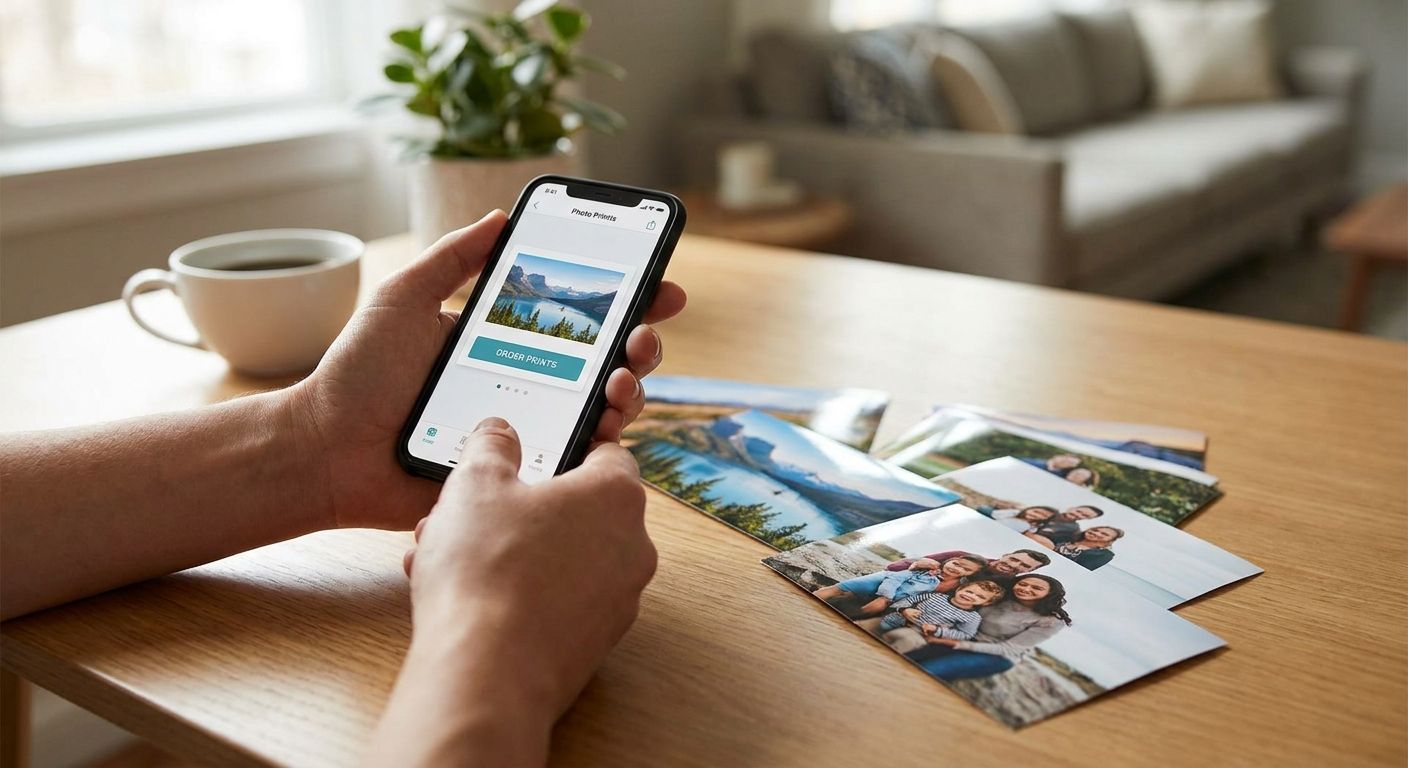
Your phone holds thousands of photos that never leave the screen. This guide walks through exactly how to turn them into physical prints, canvases and gifts without touching a computer.
- You can print photos from phone in under 10 minutes using a mobile browser or app upload.
- JPEG files at 300 DPI or higher give the sharpest results for canvas prints and photo books.
- Pixa Prints accepts direct phone uploads for canvases, calendars, mugs and photo books in 2026.
- Screenshots and heavily cropped images are the most common reason prints come out blurry.
- Order photos in batches of 10-20 to keep shipping costs sensible and avoid duplicate uploads.
Why this matters
Most people take over a thousand photos a year on their phone and print almost none of them. That's not a storage problem, it's a workflow problem — nobody wants to plug a phone into a laptop just to move ten images.
Direct phone-to-print ordering removes that step entirely. You pick the photo, upload it, choose a product, and it ships. In 2026, every major photo printing service, including Pixa Prints, is built mobile-first because that's where the photos actually live.
The skill that matters here isn't technical. It's knowing which photos will actually look good printed at size, and which ones will come back grainy. That's what this guide covers.
What you'll need
- A smartphone with the photos already saved to your camera roll or cloud backup
- A stable Wi-Fi connection (uploading 20+ high-resolution photos on mobile data gets expensive fast)
- 10-15 minutes, more if you're picking photos from a big trip
- A mobile browser or the printing service's upload page — no app install required for most orders
- A rough idea of what you want: canvas prints, calendars, photo books, mugs, phone cases all handle phone uploads slightly differently
The steps
1. Sort before you upload
Go through your camera roll and star or save the shots you actually want printed, rather than uploading everything and deciding later. This saves time and stops you from ordering three near-identical shots of the same sunset.
Aim for photos with good natural light and minimal digital zoom. Anything shot in low light or zoomed past 3x tends to lose detail once it's blown up to canvas size.
Common mistake: uploading a photo straight from a group chat or social media download. These are usually compressed down to a fraction of the original resolution and print soft and pixelated.
2. Check the resolution before you commit
Open the photo on your phone and check the file size — anything under 1MB is a warning sign for a large print like a canvas. A photo taken directly on a modern phone camera is normally 3-8MB, which is plenty for most sizes.
For prints above A3 size, you want the image to be at least 300 DPI at the finished dimensions. Most printing platforms will flag a low-resolution upload automatically, but it's worth checking yourself before you pay for a large canvas that won't hold up.
3. Upload directly from your phone browser
Open the printing site in your mobile browser and go to the product you want. When you tap the upload button, your phone will offer you the choice between the camera roll, cloud storage (iCloud, Google Photos) or taking a new photo on the spot.
Pick the camera roll option for the sharpest results, since cloud-synced versions are sometimes compressed for faster loading. This step usually takes under a minute per photo on a decent connection.
Common mistake: uploading a screenshot of a photo instead of the photo itself. Screenshots capture your screen's resolution, not the image's — that's an instant quality drop.
4. Crop and preview at the actual print ratio
Every photo product has a fixed aspect ratio — square for some photo books, rectangular for standard canvases, circular for some mugs. Use the crop tool on the upload screen to match your photo to that shape rather than letting the platform crop it automatically.
Zoom in on the preview and check the faces and edges specifically. A face sitting right on the crop line in the preview will often get cut off slightly in the final print.
5. Order a size that matches your original resolution
Bigger isn't always better if your source photo can't support it. A photo from a 2019 phone camera might look fine at 8x10 inches but grainy at 20x30 on a canvas.
As a rough rule: if the platform doesn't warn you about resolution, a photo over 4MB will hold up fine up to A2 size (roughly 16x24 inches). Below that, stick to smaller formats like photo books, calendars or mugs where the print area is smaller.
Start your photo print order
Upload straight from your phone and pick canvas, calendar, mug or photo book.
6. Batch similar products together
If you're ordering more than one item — say a calendar for a parent and a canvas for yourself — upload all the photos for both in one session rather than going back and forth. This keeps your order organised and avoids paying for shipping twice.
Most checkout flows let you review every photo assigned to every product before you pay. Take the extra 60 seconds to scroll through the whole order once more; catching a wrong photo here is free, catching it after printing isn't.
7. Confirm delivery details and place the order
Double-check the delivery address, especially if you're sending the print as a gift straight to someone else rather than to yourself. Gift orders are one of the most common reasons for reprint requests when the address gets missed.
Once the order is placed, you'll get a confirmation with an estimated delivery window. In 2026, most UK print orders move from upload to delivered doorstep inside a week for standard products.
Troubleshooting
- The upload keeps failing or timing out. Switch from mobile data to Wi-Fi — large photo files often stall on weaker mobile connections, especially uploading several at once.
- The preview looks blurry even though the photo looked fine on my phone. This is almost always a resolution warning being ignored. Go back and check the file size against the print size you selected.
- My photo got cropped in a way I didn't expect. Use the manual crop tool rather than accepting the automatic crop — automatic cropping centres the image, which cuts off subjects near the edges.
- Colours look different in the print than on my screen. Phone screens are brighter and more saturated than printed paper or canvas by default, so slightly warmer or darker printed colours are normal, not a fault.
- I uploaded the wrong photo and already paid. Contact the printing service immediately — most can swap a photo before the order enters production, but not after.
- The file won't upload at all. Check the format — JPEG and PNG work everywhere, but HEIC files from newer iPhones sometimes need converting first depending on the upload tool.
Tools and resources
- Your phone's native camera roll or gallery app for sorting and starring photos
- Cloud backup (iCloud or Google Photos) as a second source if your camera roll photo has been deleted
- The Pixa Prints upload page for canvases, calendars, photo books, mugs and phone cases, all built for direct phone uploads
- A basic photo editor (most phones have one built in) for straightening or brightening a shot before upload
FAQ
Can I print photos from phone without a computer?
Yes, you can print photos from phone entirely through a mobile browser or app, without ever transferring files to a computer. Upload directly from your camera roll or cloud storage and the printing service handles the rest.
What resolution do I need to print a photo from my phone?
Aim for at least 300 DPI at the finished print size, which usually means a file over 3MB for anything larger than a standard photo print. Screenshots and social media downloads are almost always too low-resolution for large formats like canvas.
Is it better to print photos from iCloud or the camera roll?
The camera roll usually gives you the original, uncompressed file, while cloud-synced versions can be compressed for faster loading. Upload from the camera roll when the original photo is still on your device.
How much does it cost to print photos from a phone in 2026?
Cost depends on the product and size you choose, from small prints and mugs to larger canvases and photo books. Check current pricing on the ordering page before checkout since sizes and finishes vary.
Can I turn a phone photo into a canvas print?
Yes, as long as the original photo has enough resolution for the canvas size you want. A sharp, well-lit photo taken on a modern phone camera typically holds up well up to A2 size.
Why does my printed photo look darker than it did on my phone?
Phone screens are backlit and boost brightness and saturation compared to printed materials. A slightly warmer or darker finish on the printed version is expected, not a printing error.
Do I need an app to print photos from my phone?
No, most printing services let you upload and order entirely through a mobile browser, so no app download is required. An app can make repeat ordering faster, but it's not necessary for a first order.
How long does it take to receive prints ordered from a phone?
Standard UK delivery for phone-ordered prints typically takes under a week from upload to doorstep in 2026. Larger or custom products like canvases may take a little longer depending on production volume.
One last thing
The single biggest quality difference isn't the printing service, it's the source photo. A photo shot in good daylight on a three-year-old phone will out-print a zoomed-in, low-light shot from the newest phone on the market every time — resolution and lighting matter more than the camera model.